Answer first
Copy a few values from your Twilio console into Conduyt’s Twilio settings, point one Twilio calling app at Conduyt, and your team can call and text from Conduyt on your own Twilio numbers.
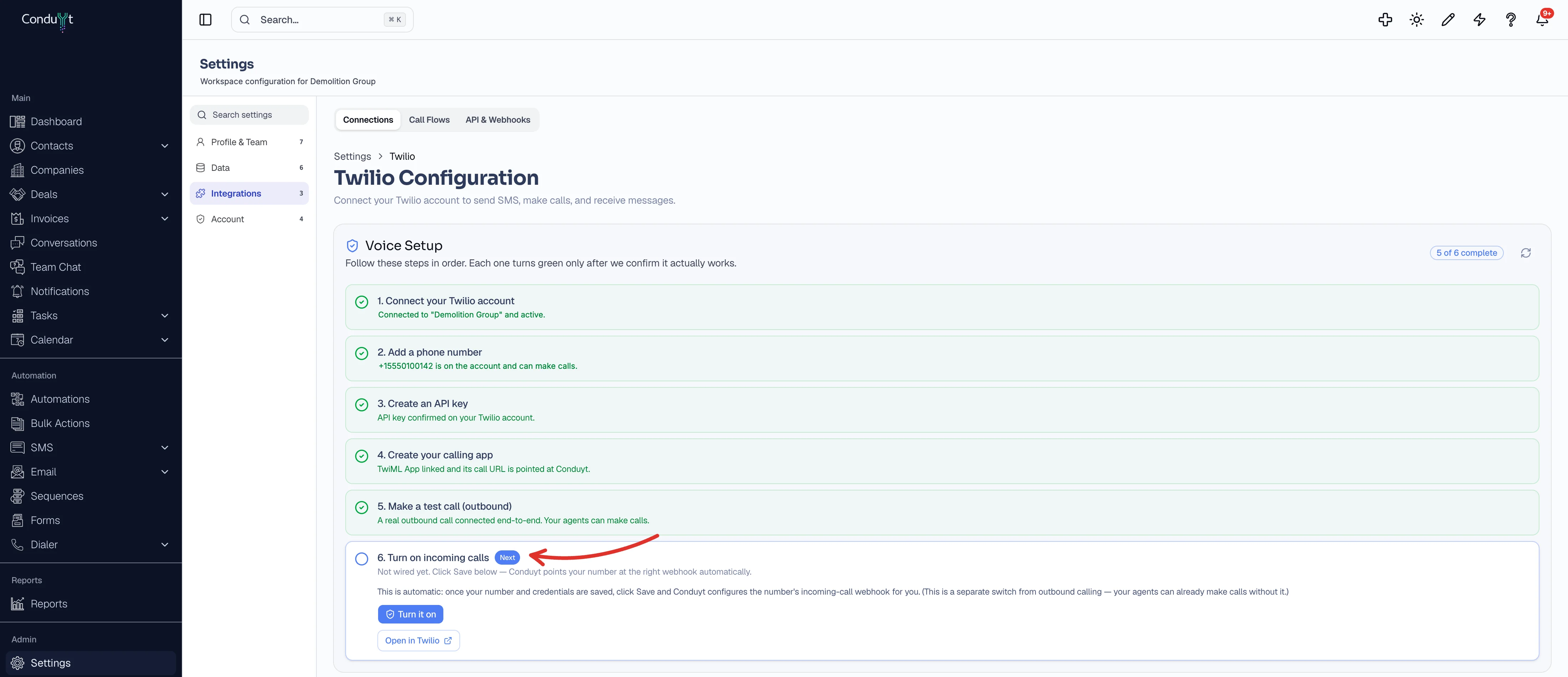
Conduyt’s Twilio settings page has a six-step Voice Setup checklist. Each step turns green only after Conduyt confirms it works, so you always know what is left. Texting needs step 1 and a number; calling needs all six.
- Needs
- Your own Twilio account with a number that can do voice and SMS, and a Conduyt login that can change settings
- Time
- About 15 minutes, or about five with our team
Rather have us do it? Reply to any email from us or book a quick call, and our team will set it up with you. It takes about five minutes.
00 / Check
Before you start
- A Twilio account. Conduyt uses your own Twilio account, so your numbers stay yours and Twilio bills you directly for numbers and usage.
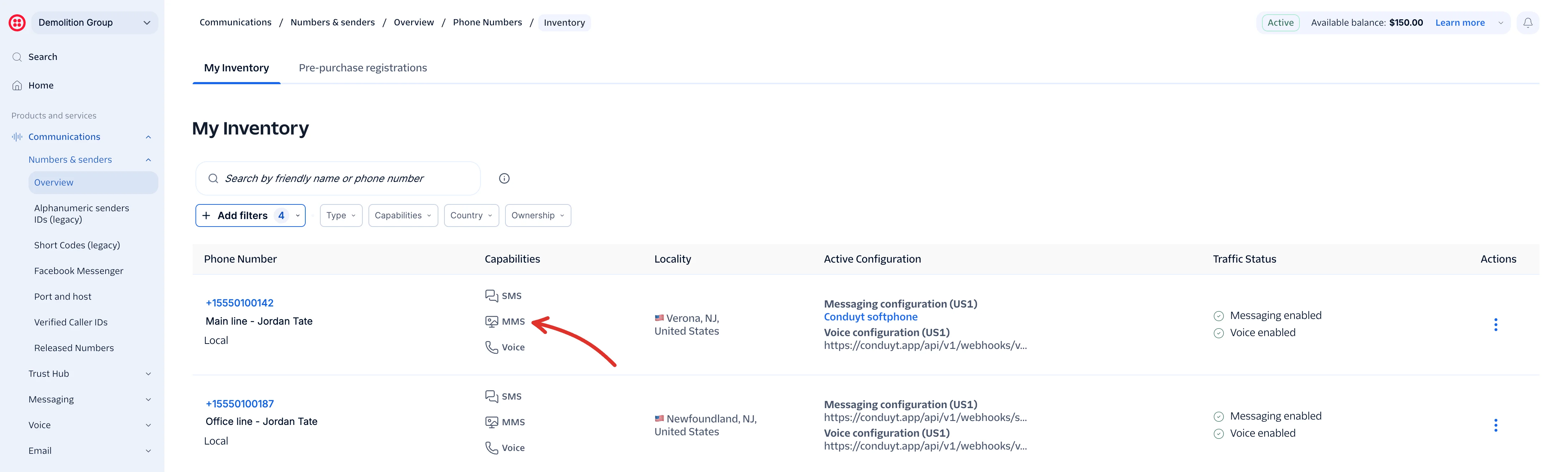
- A Twilio number that can do voice and SMS. In the Twilio console, open Communications, then Numbers & senders, and check the Capabilities column. A voice-only number cannot send texts.
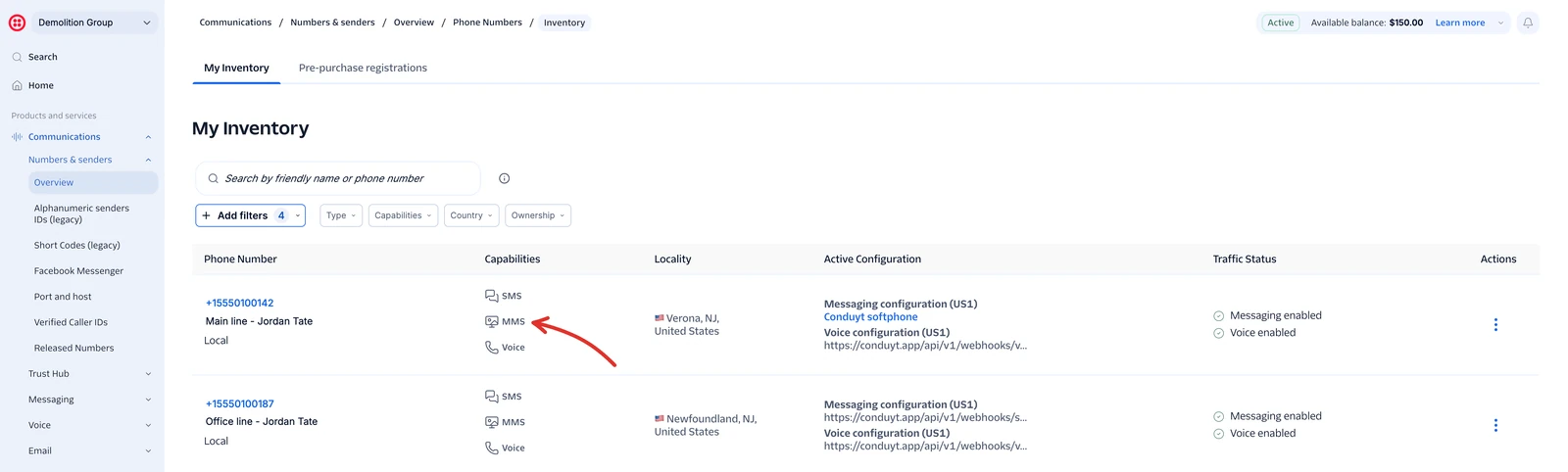
The number list in Twilio, with its capabilities. Click the image to open it full size. - A2P 10DLC registration for texting US numbers. Carriers filter unregistered business texts sent from 10-digit numbers, so Twilio asks you to register a Brand and then a Campaign. It is not instant, so start it early. In the Twilio console it is under Trust Hub, then Registrations. Background: What is 10DLC? and Twilio’s A2P 10DLC docs.

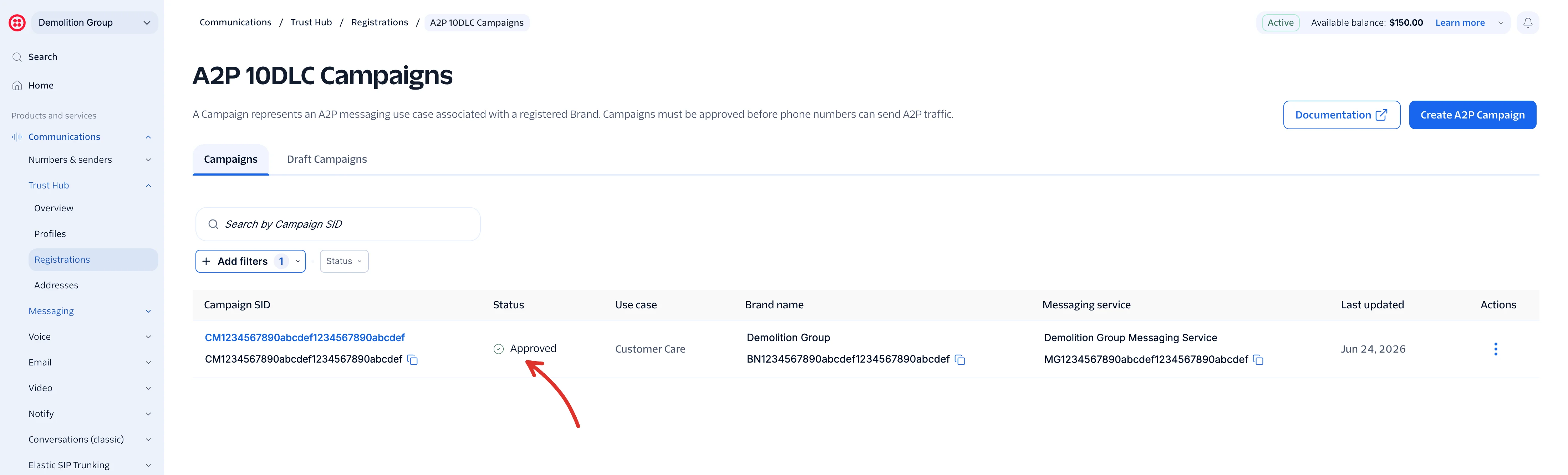
Trust Hub, then Registrations, in the Twilio console. Click the image to open it full size. 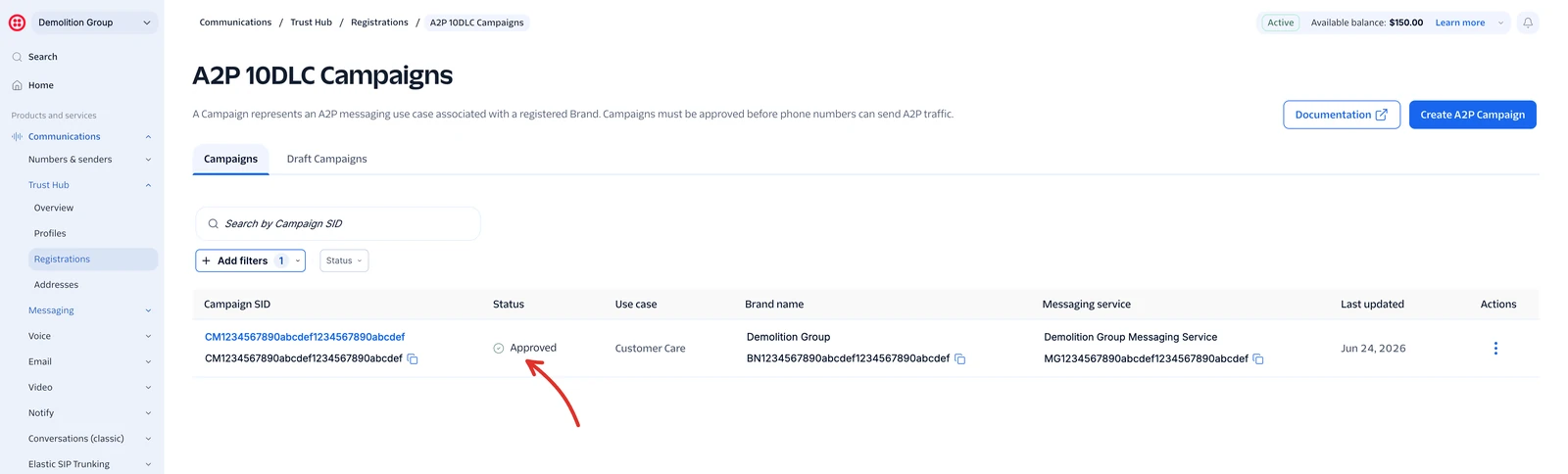
A campaign that is ready to send shows Approved. Click the image to open it full size. - A Conduyt login that can change settings. The Twilio settings are under Settings, then Integrations, then Twilio.

01 / Connect
Step 1: connect your Twilio account
- Open the Twilio console home page. Copy the Account SID, then click the eye icon to reveal the Auth Token and copy it.

Account SID and Auth Token on the Twilio console home page. Click the image to open it full size. - In Conduyt, open Settings, then Integrations, then Twilio. Under Core Credentials, paste the Account SID and Auth Token, and enter your Twilio number in +1XXXXXXXXXX format.
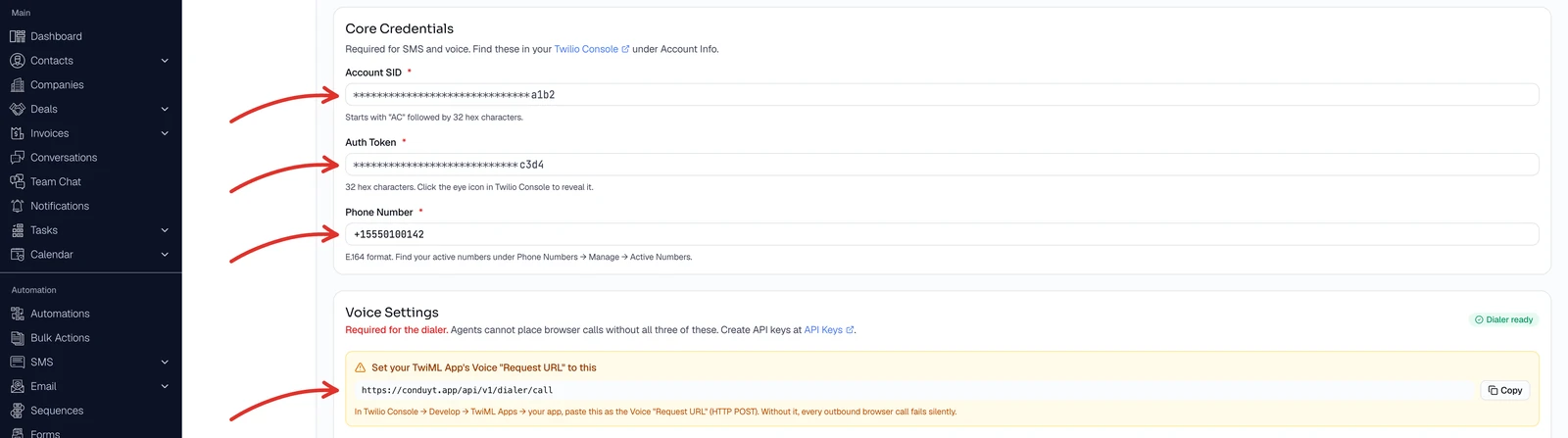
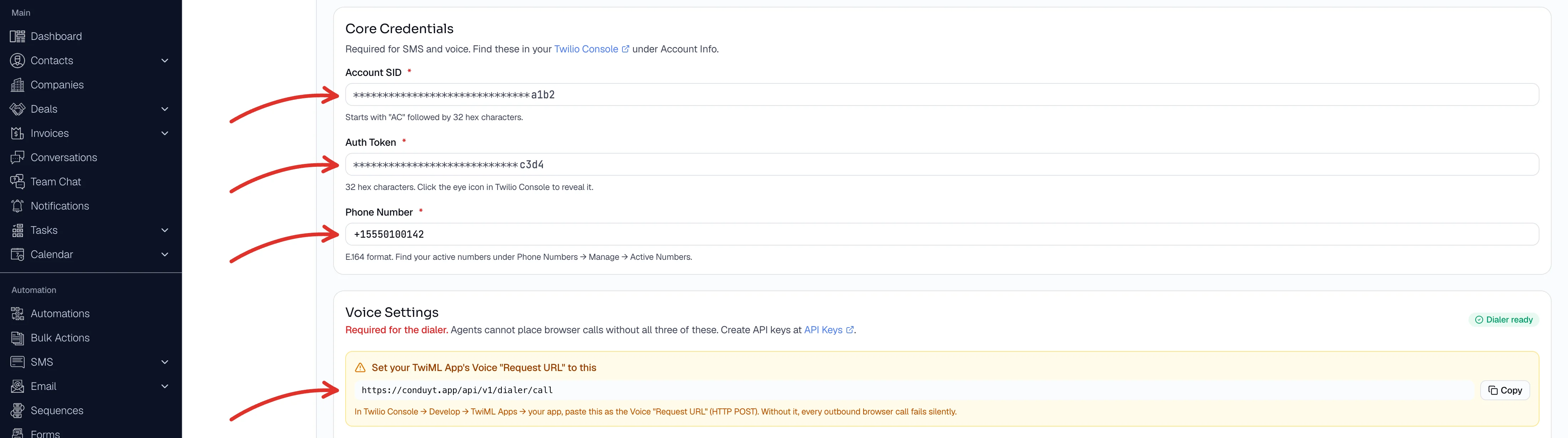
Core Credentials in Conduyt. The yellow box below shows the address you need in step 4. Click the image to open it full size. - Save. Step 1 of the Voice Setup checklist turns green once Conduyt has connected to your account. Texting works from here, on the number you entered.

02 / Number
Step 2: add a phone number
The number you entered in step 1 must be on the same Twilio account and able to make calls. Conduyt checks both, and step 2 turns green when they pass. If it stays grey, check the number’s Voice capability in Twilio and the +1 format in Conduyt.
03 / Key
Step 3: create an API key
- In the Twilio console, open API keys & auth tokens (there is a link on the console home page) and click Create API key.
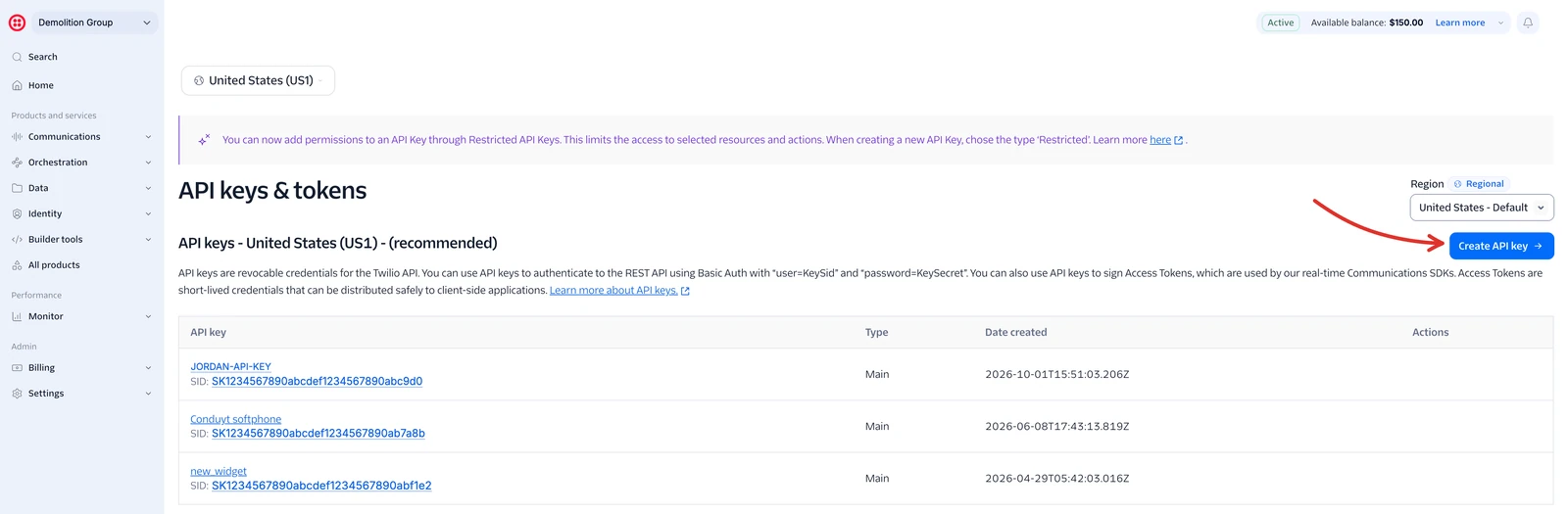
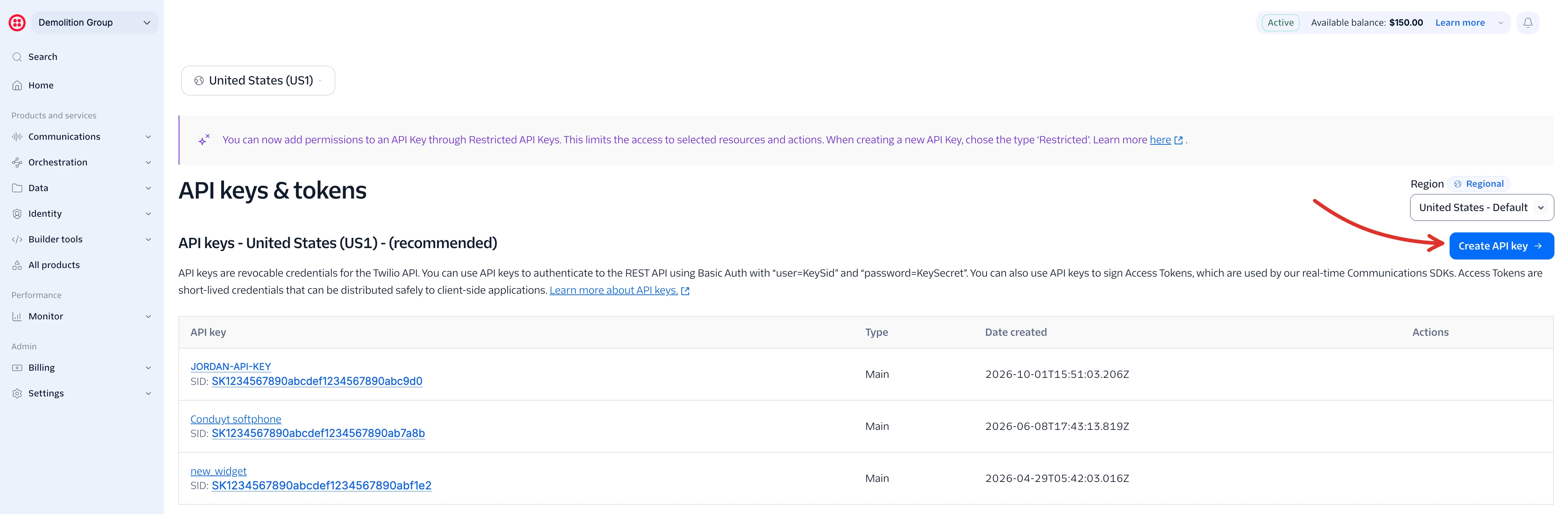
API keys & tokens in the Twilio console. Click the image to open it full size. - Copy the key’s SID, which starts with SK, and its Secret. Twilio shows the secret only once, so paste it straight into Conduyt.
- In Conduyt, under Voice Settings, paste them into API Key SID and API Secret.

Voice Settings in Conduyt. The TwiML App SID comes from step 4. Click the image to open it full size.

04 / Calling app
Step 4: create your calling app
Calls from Conduyt run through a TwiML App in your Twilio account. It tells Twilio where to send each call: to Conduyt.
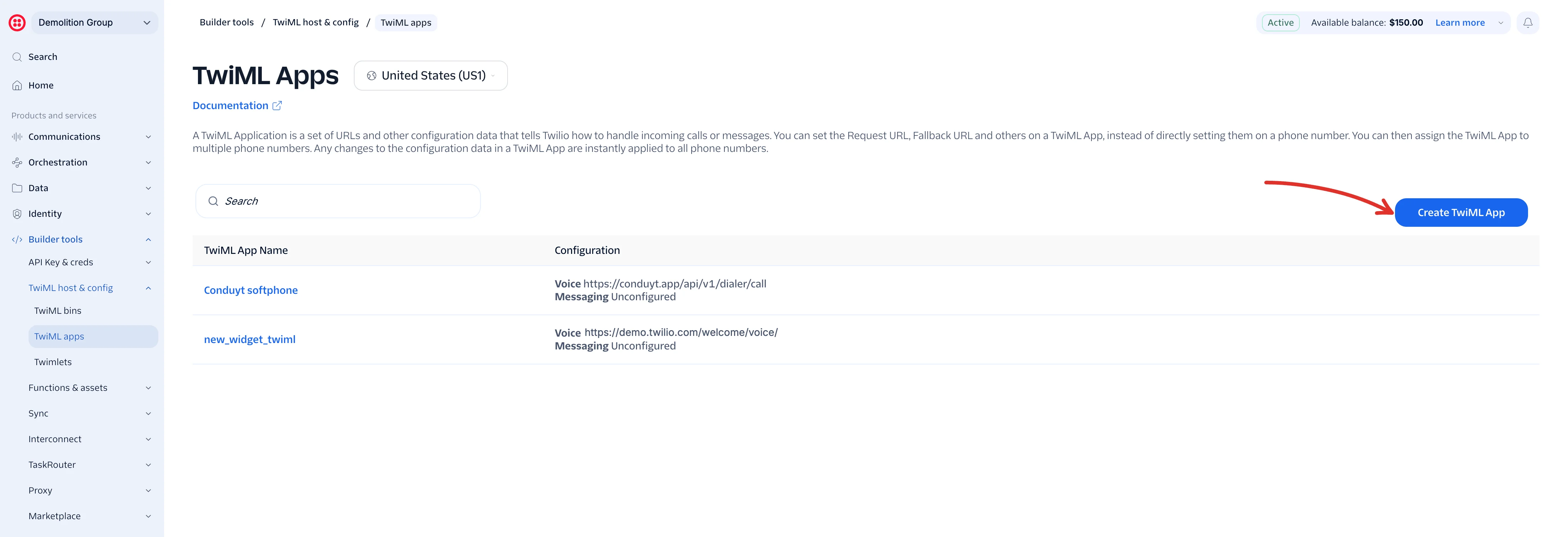
- In the Twilio console, open Builder tools, then TwiML host & config, then TwiML apps, and click Create TwiML App. Give it a name you will recognise, for example Conduyt softphone.
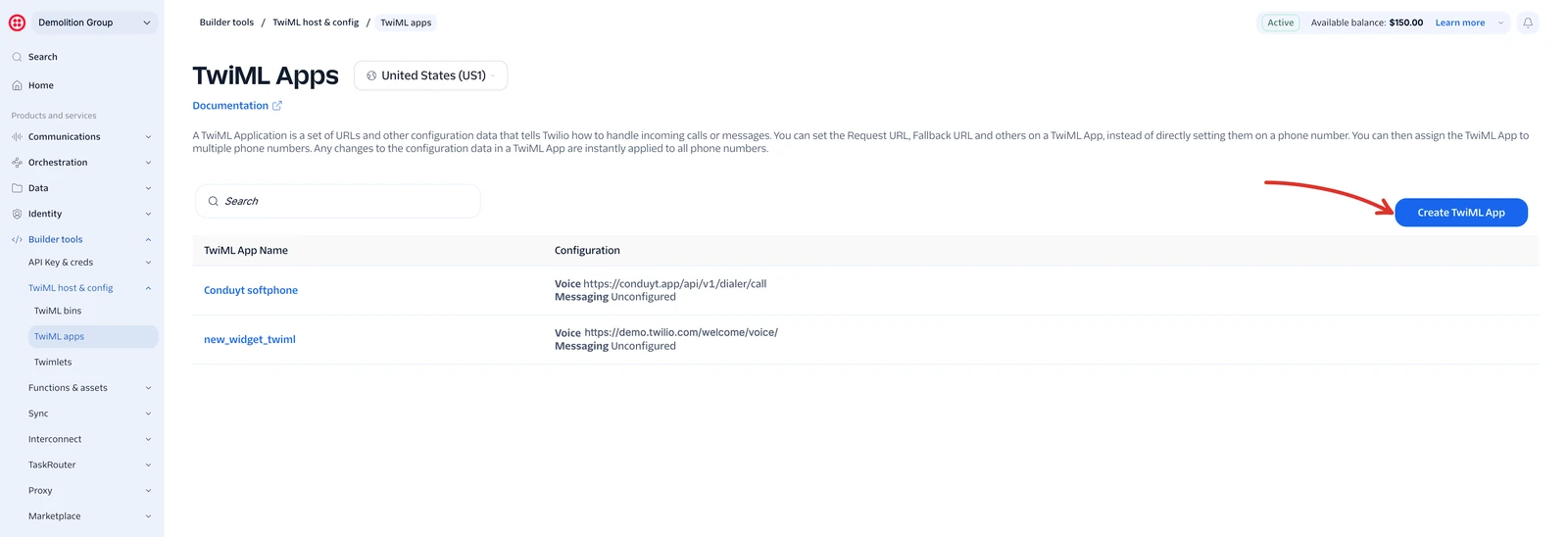
TwiML apps in the Twilio console. Click the image to open it full size. - On the app’s Voice tab, set the Request URL to the address Conduyt shows in its yellow box, with HTTP POST, and save:
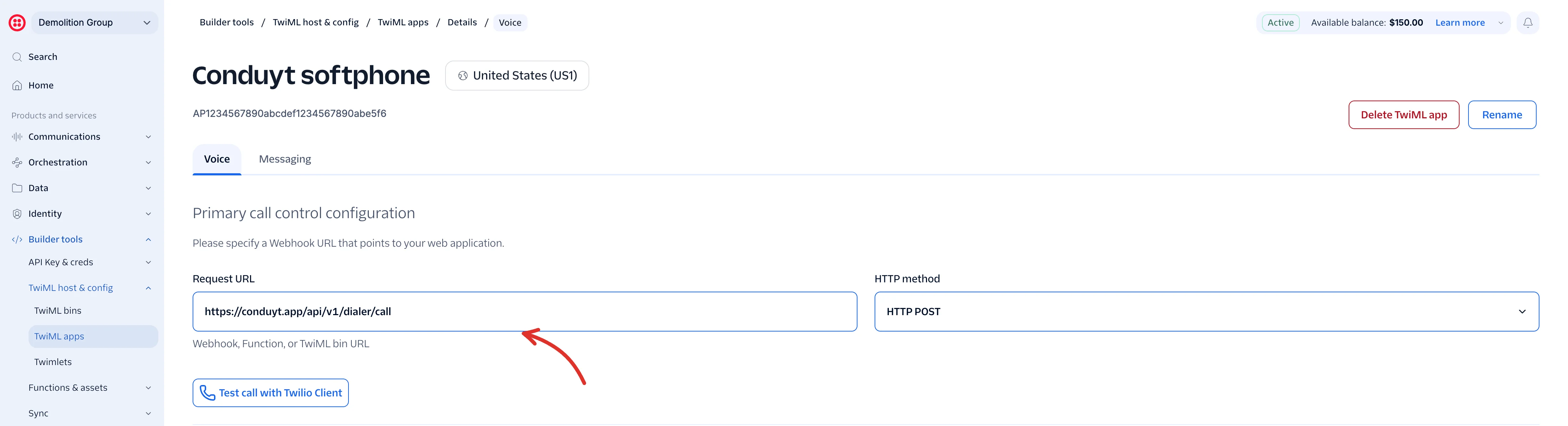
https://conduyt.app/api/v1/dialer/call
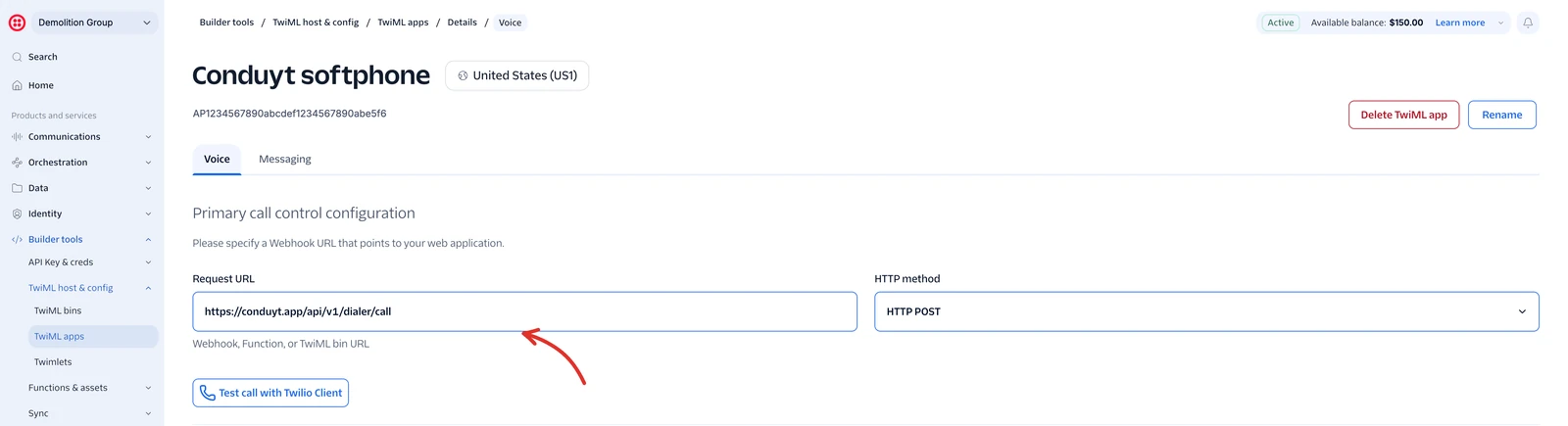
The Request URL points at Conduyt. Without it, outbound browser calls fail silently. Click the image to open it full size. - Copy the app’s SID, which starts with AP, into TwiML App SID in Conduyt’s Voice Settings, and save. Step 4 turns green when the app is linked and its call address points at Conduyt.
05 / Test
Steps 5 and 6: test call and incoming calls
- Make a test call. Place one outbound call from Conduyt. Step 5 turns green when a real call connects end to end, which means your team can now make calls.
- Turn on incoming calls. Click Turn it on under step 6. Conduyt points your number’s incoming-call webhook at Conduyt for you, so calls to the number ring in Conduyt.
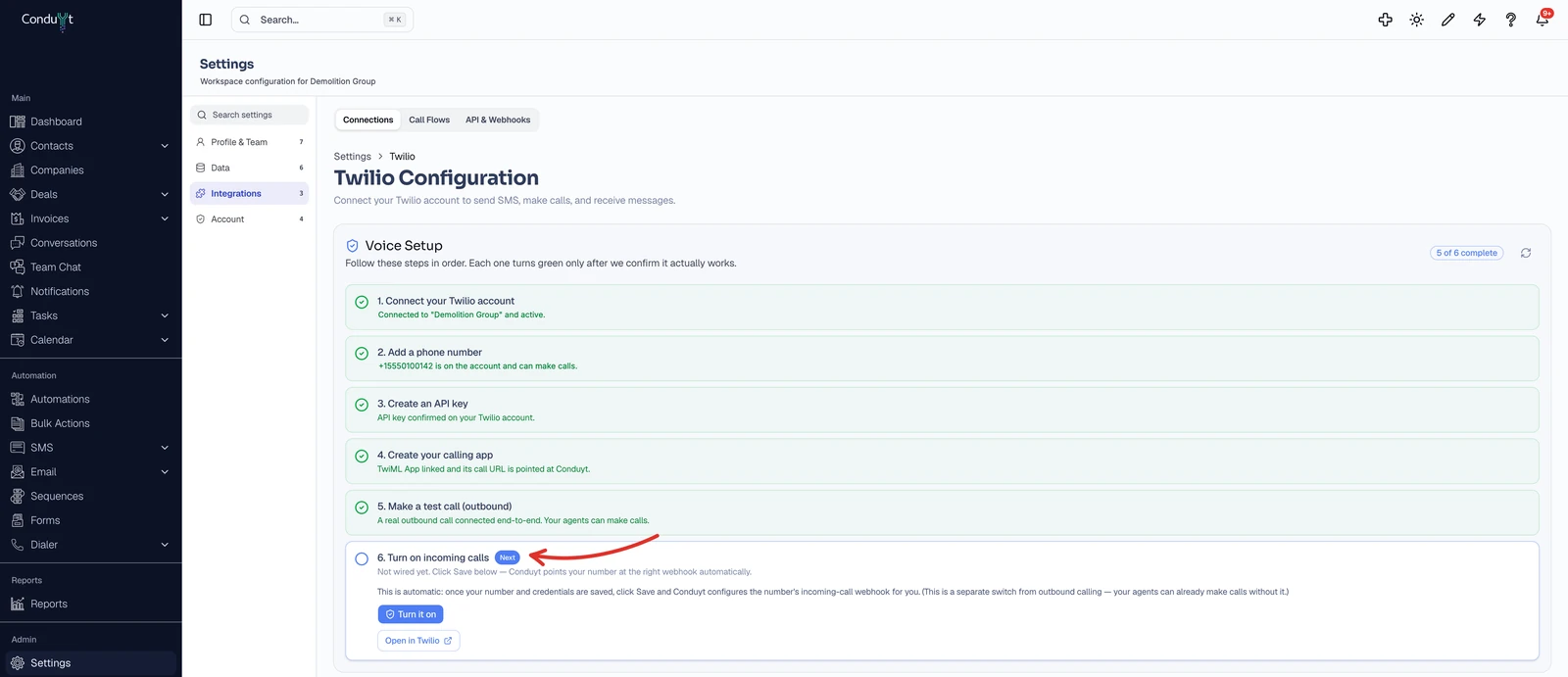
The Voice Setup checklist with steps 1 to 5 complete. Click the image to open it full size.
06 / Optional
Optional: call recording
Lower on the same page, Call recording lets you record inbound calls, outbound calls, or both, and play a short recording disclosure at the start of each call. Recordings appear on the contact’s record and in call history. You are responsible for consent where you operate.

07 / FAQ
Frequently asked questions
Why does texting work but calling doesn’t?
Texting only needs your Account SID, Auth Token and a number. Calling also needs the API key from step 3 and the calling app from step 4, with its Request URL pointed at Conduyt. Check which checklist step is still grey.
Who bills me for calls and texts?
Twilio bills your account directly for numbers and usage, not Conduyt.
Do I need A2P 10DLC registration?
For business texts to US numbers from a 10-digit number, yes. Carriers filter unregistered traffic. Calling does not need it.
I lost my API secret. What now?
Twilio shows the secret only once. Create a new API key in Twilio and paste the new SID and secret into Conduyt.
Can someone set this up for me?
Yes. Reply to any email from us or book a call, and our team will do it with you in about five minutes.
Where can I read more about the Twilio integration?
The Twilio integration page covers what syncs, the compliance guards on calls, and the limits.
Rather have us do it? Reply to any email from us or book a quick call, and our team will set it up with you. It takes about five minutes.