Answer first
Connect Mailchimp in Conduyt’s settings, pick one audience and one smart list or tag, and Conduyt keeps them in step.
Conduyt adds and updates the contacts in your Mailchimp audience with their name and tags. New Mailchimp subscribers come back as Conduyt contacts, and unsubscribes and bounced addresses opt the contact out of email in Conduyt. There is no API key to copy and no Zapier in between.
- Needs
- A Mailchimp account and a Conduyt owner or admin
- Setup time
- About 10 minutes
- Direction
- Contacts to Mailchimp; sign-ups and opt-outs back
00 / Check
Before you start
- A Mailchimp account with an audience. Each connection syncs to one audience, so decide which one your CRM contacts belong in.
- A smart list or tag in Conduyt that holds the contacts you want in Mailchimp. A tag such as “newsletter” is the simplest choice.
- A Conduyt owner or admin login. The Mailchimp settings are only available to workspace owners and admins.
- Consent. Only sync people who agreed to hear from you. Conduyt leaves out anyone who has opted out of email or is marked do not contact, but it cannot decide consent for you.
01 / Connect
Step 1: connect your Mailchimp account
- In Conduyt, open Settings, then Integrations. On the Mailchimp card, click Connect.
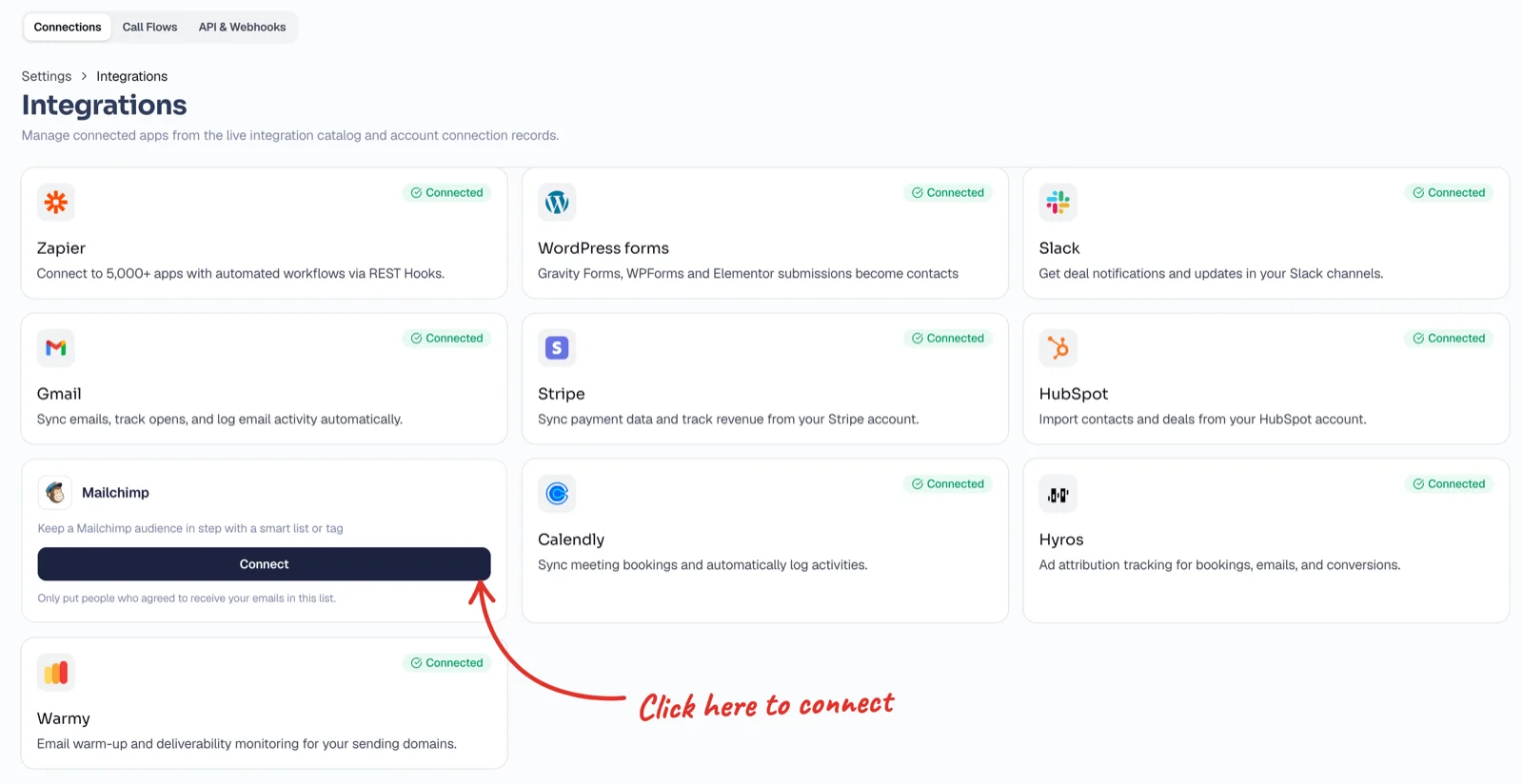
Settings, then Integrations: the Mailchimp card. - Mailchimp opens. Log in to the Mailchimp account that holds your audience.
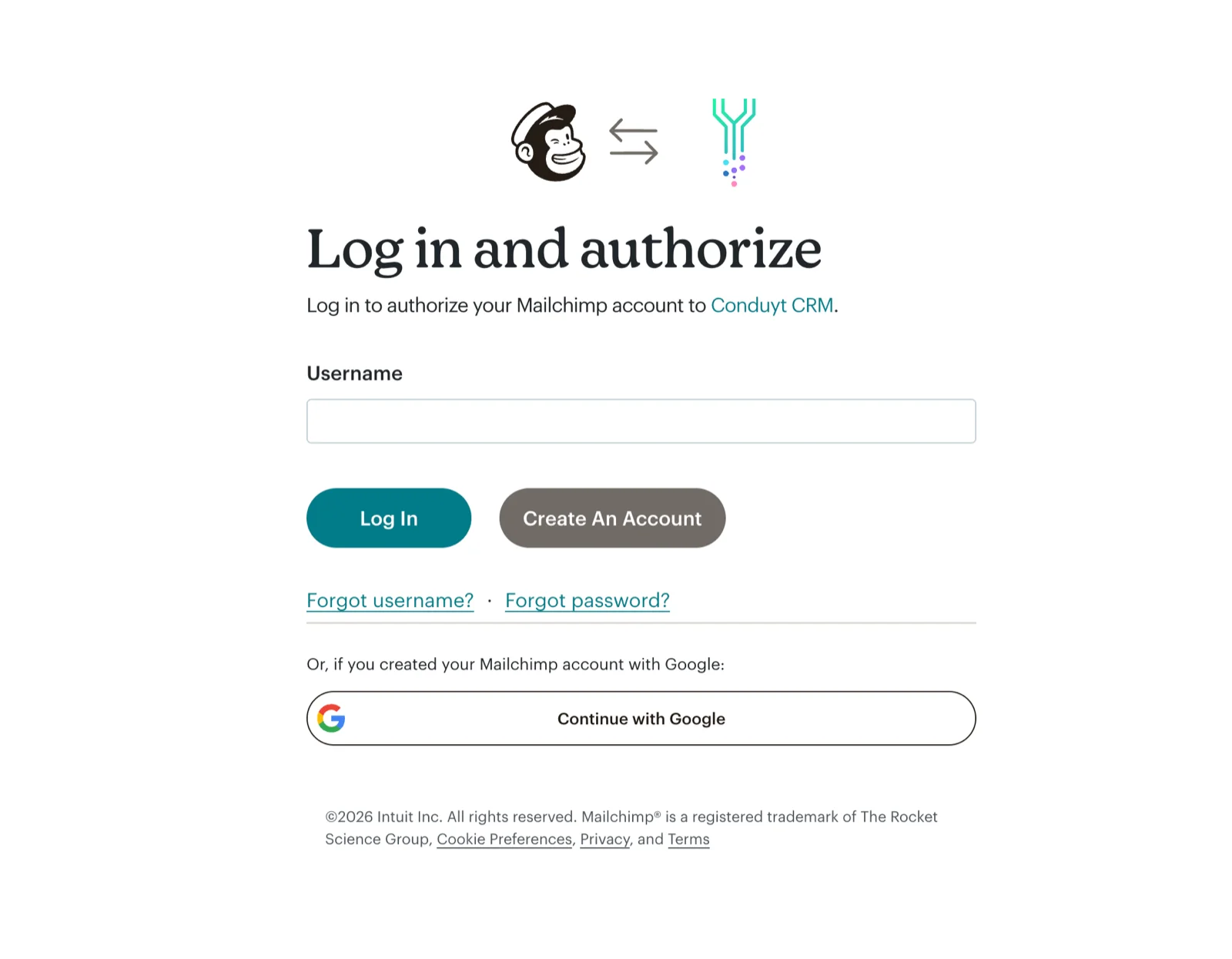
Log in to Mailchimp to authorize Conduyt CRM. - Check that the app is Conduyt CRM by Conduyt, then click Allow.
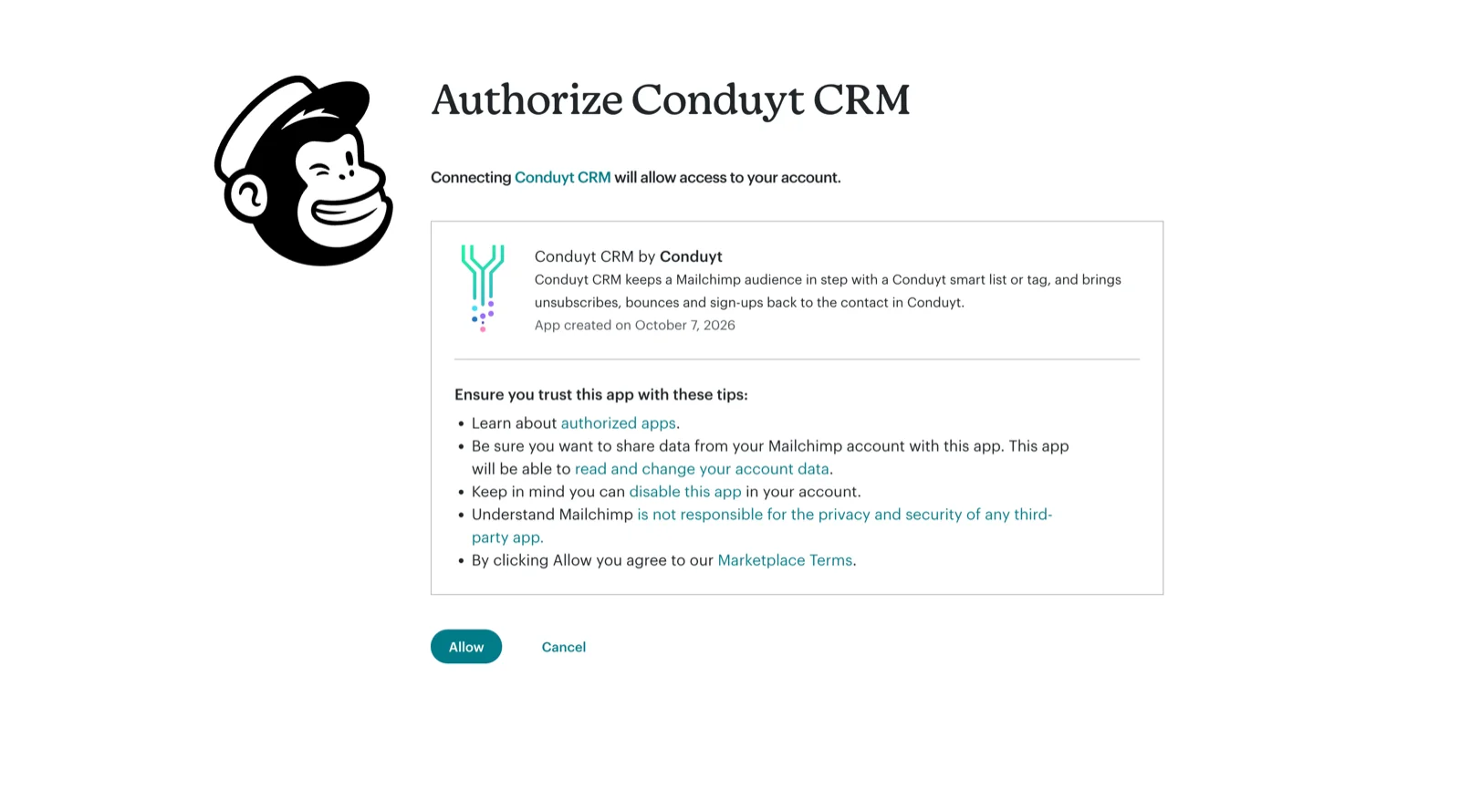
Mailchimp asks you to allow Conduyt CRM. - You come back to Conduyt with the account connected. There is no API key to copy or paste.
02 / Choose
Step 2: choose the audience and the contacts
- Under Audience, pick the Mailchimp audience to sync to.
- Choose the source: one smart list or one tag. Contacts in it with an email address and email opt-in are sent to Mailchimp.
- Under New people are added as, keep Subscribed (the default) or choose Pending, in which case Mailchimp sends each new person a confirmation email first.
- Leave Unsubscribes opt contacts out on (the default) so a Mailchimp unsubscribe or bounce opts the contact out of email in Conduyt.
- Save. Conduyt registers its own webhook on the audience and starts the first backfill.
Each contact is added to the audience or, if the email address is already there, updated with first name, last name and Conduyt tags. Mailchimp keys members by email address, so nobody is duplicated.
03 / Check
Step 3: check the first sync
- The Mailchimp card in Conduyt shows the backfill’s progress, pending pushes and any errors.
- Open the audience in Mailchimp: your contacts are there with their tags.
- From now on, a contact who joins the smart list or gets the tag is sent within about two minutes.
04 / Opt-outs
What comes back from Mailchimp
- New subscribers. When someone subscribes to the audience in Mailchimp, for example through a Mailchimp signup form, Conduyt creates the contact or matches it by email address, with email opt-in on and a timeline entry. This includes people who never came from your smart list or tag.
- Name and address changes. First and last name changes in Mailchimp update the Conduyt contact. An email-address change does too, unless another Conduyt contact already uses that address.
- Unsubscribes. With the setting on (the default), when someone unsubscribes in Mailchimp, Conduyt opts the contact out of email, and their sequences stop.
- Cleaned addresses. When Mailchimp cleans an address that bounced, Conduyt treats it as a hard bounce.
- Timing. The webhook usually delivers these right away. A status check every 15 minutes catches anything it missed.
- No re-subscribing. Conduyt never opts anyone back in because of an unsubscribe or bounce in Mailchimp.
05 / Fix
If something looks wrong
- A contact is missing in Mailchimp. It has no email address, it has no email opt-in, it is opted out of email or marked do not contact in Conduyt, or it is not in the smart list or tag you chose.
- Someone left the list but is still in Mailchimp. That is expected. Removing a contact from the smart list or tag does not remove them from the audience; unsubscribe or archive them in Mailchimp.
- The card mentions your Mailchimp plan. Your plan’s contact limit is blocking new members. Upgrade in Mailchimp or sync a smaller list, then save the settings or press Push now to retry; Conduyt does not retry these on its own.
- The card shows a paused or stalled check. Mailchimp is rate-limiting the connection, or it could not confirm a full read of the audience. The card says which; follow its button to run the check again or resume.
- Access was revoked. Someone removed Conduyt’s access in Mailchimp. Connect again from the same settings page.
06 / FAQ
Frequently asked questions
Can I sync more than one audience?
Each connection syncs one Conduyt smart list or tag to one Mailchimp audience.
Do edits in Mailchimp change my Conduyt contacts?
Some do. New subscribers, first and last name changes and email-address changes come back to Conduyt, as do unsubscribes and bounced addresses. Tags only go from Conduyt to Mailchimp.
Are Mailchimp campaigns or results copied into Conduyt?
No. Campaigns, segments, opens and clicks stay in Mailchimp.
What happens if I disconnect?
Both directions stop, Conduyt removes its webhook from the audience (the card shows Disconnecting until Mailchimp confirms) and the connection is deleted in Conduyt. Nothing is deleted, archived or unsubscribed in Mailchimp.
Can developers use this through the API?
Yes. The Mailchimp settings, audiences, pushes and status checks are available through Conduyt’s API with the integrations scope, and through Conduyt’s MCP server and CLI. Overview on the Mailchimp integration page.