Answer first
Connect Calendly in Conduyt’s settings, choose the event types to sync, and every booking on them becomes a contact and an appointment.
Conduyt matches each invitee to an existing contact by email address or creates one, and adds the appointment with the event type, time, host and invitee. Cancellations and reschedules update the appointment. There is no API key to copy and no Zapier in between.
- Needs
- A Calendly account and a Conduyt login with calendar permission on an active plan
- Direction
- Calendly bookings into Conduyt
00 / Check
Before you start
- A Calendly account. You sign in to Calendly from Conduyt and approve access. Each person connects their own Calendly account.
- A Calendly plan that allows live sync. New bookings, cancellations and reschedules reach Conduyt through live sync, which needs Calendly Standard or higher. Conduyt shows a warning on the connection if Calendly refuses live sync.
- The event types you want in Conduyt. Only the event types you tick are synced. Bookings on any other event type are ignored.
- A Conduyt login with calendar permission on an active plan. The Calendly settings are under Settings, then Integrations.
01 / Connect
Step 1: connect your Calendly account
- In Conduyt, open Settings, then Integrations. On the Calendly card, click Connect.
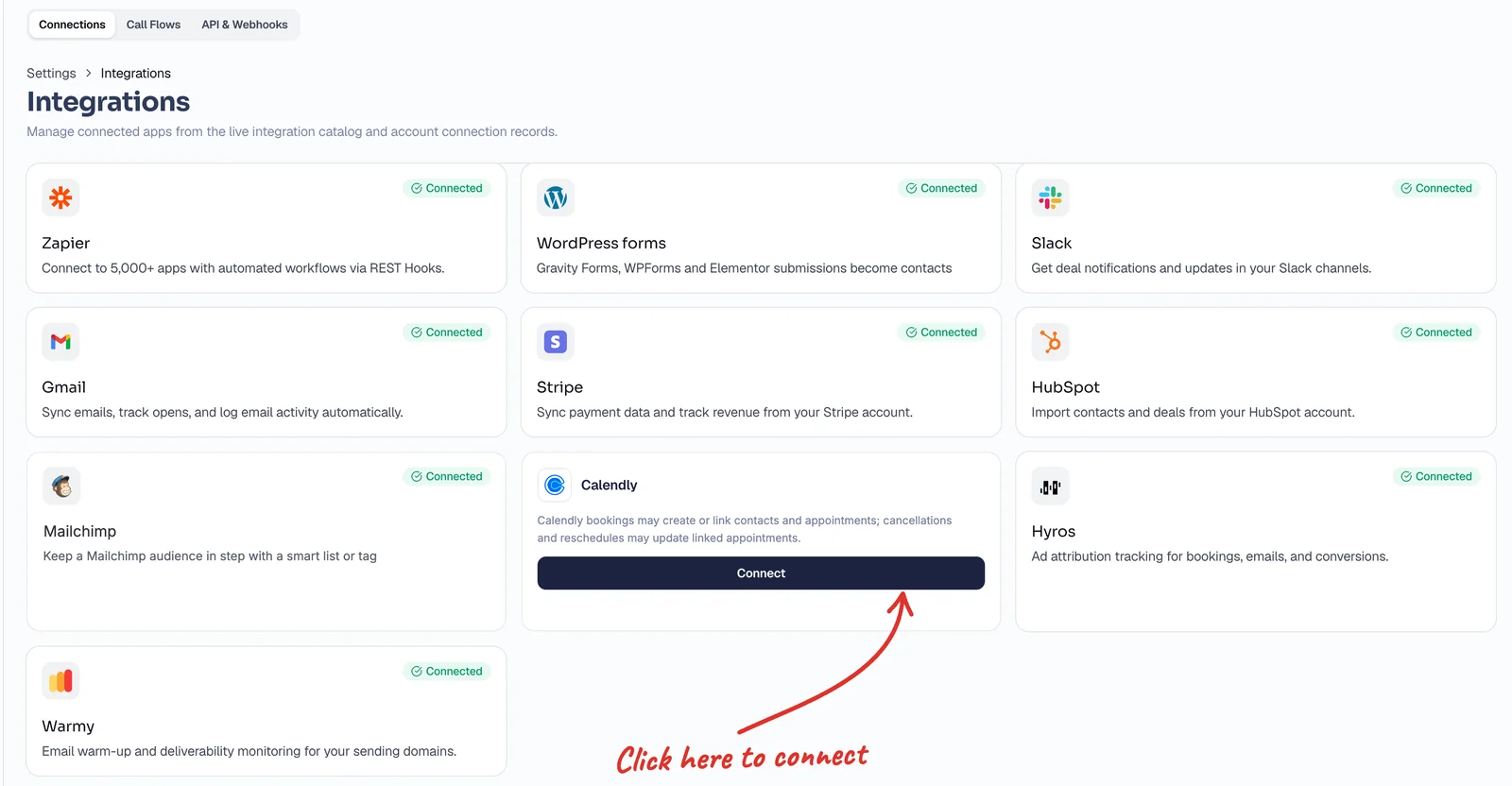
Settings, then Integrations: the Calendly card. - Calendly opens. If asked, log in to the Calendly account that holds your event types.
- On the Connect Conduyt to Calendly page, review what Conduyt will be able to do, then click Approve.
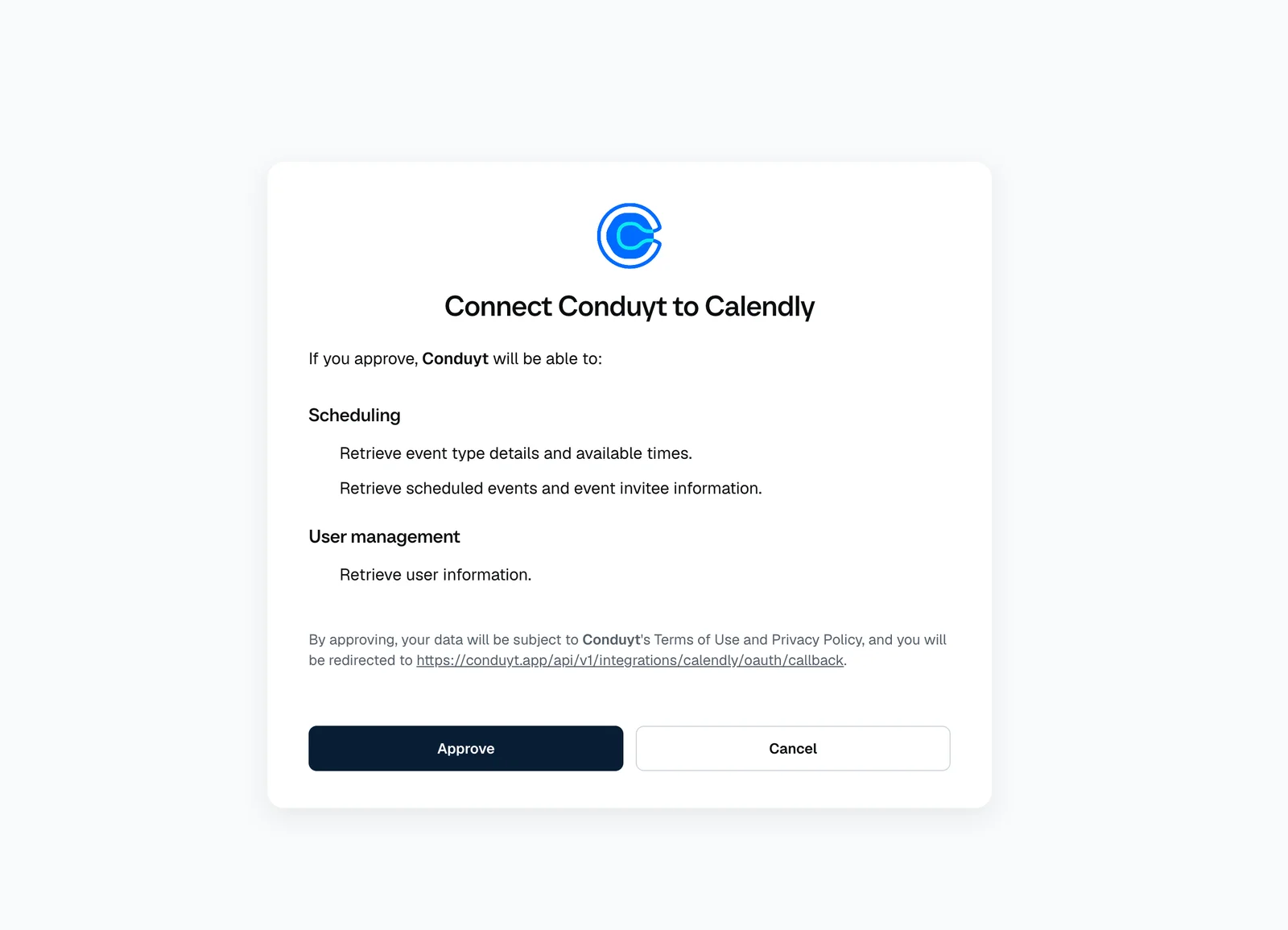
Calendly asks you to approve Conduyt. - You come back to the Calendly page in Conduyt with the account connected. There is no API key to copy or paste.
02 / Choose
Step 2: choose the event types and start the sync
- Under Which Calendly event types sync, tick only the event types you want in Conduyt. Nothing syncs until you start the sync.
- Click Start sync. Conduyt starts importing your existing bookings on those event types.
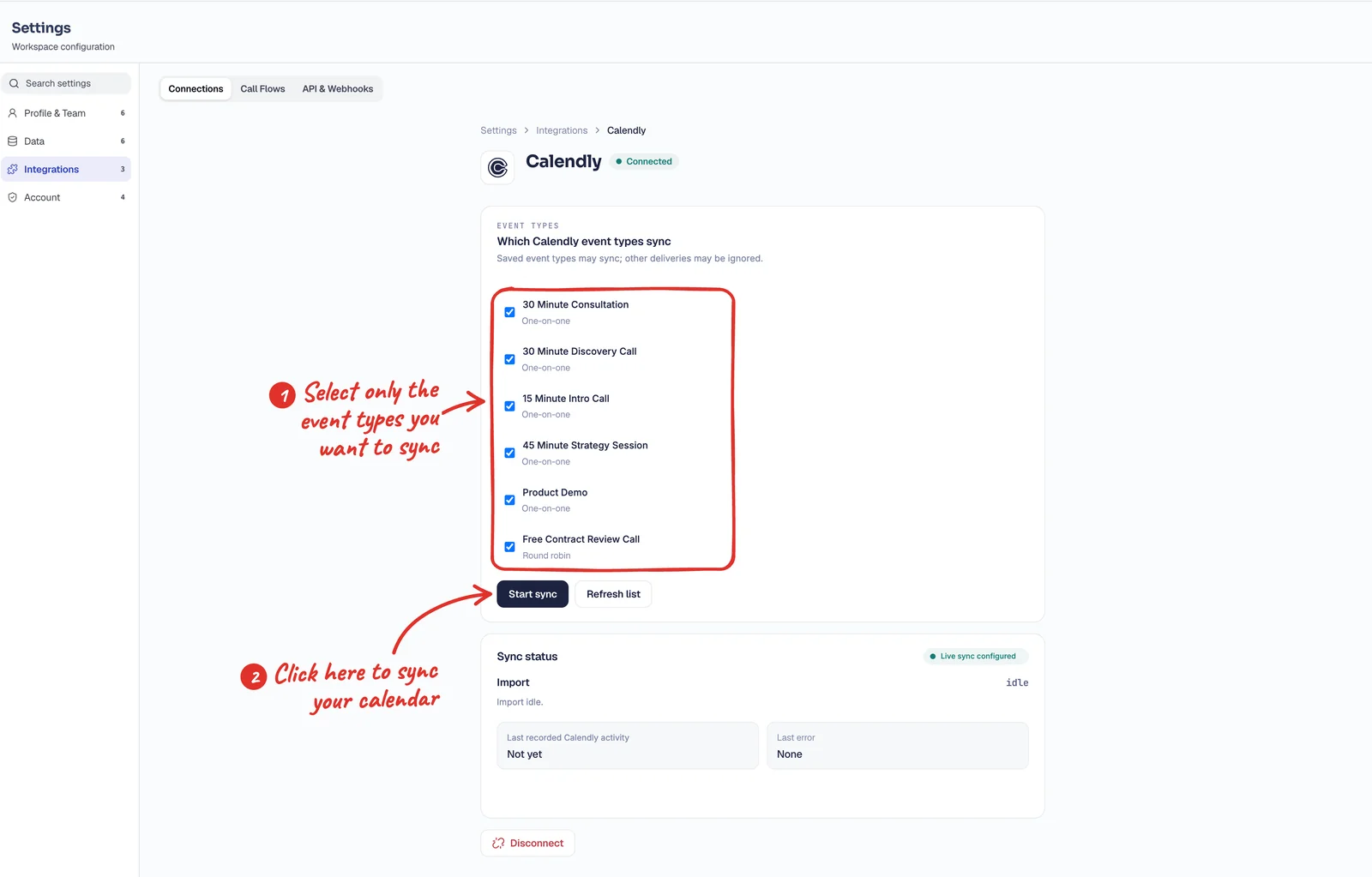
Choose the event types, then click Start sync. - If you create a new event type in Calendly later, click Refresh list, tick it and click Save.
Each booking is matched to a contact by email address first, or creates a new contact, and the appointment is added with the event type, time, host and invitee. A booking already in Conduyt for the same contact and start time is linked, not duplicated.
03 / Check
Step 3: check the sync
- The Sync status panel shows Live sync on, the import’s progress, Last booking received and Last error.
- Upcoming bookings and the last 180 days are imported. The import runs in the background and the panel refreshes while it is queued or running.
- Open a contact who booked: the appointment is in Conduyt.
- From now on, a new booking on a synced event type arrives through live sync. A booking that creates a new Conduyt appointment runs your automations.
04 / Bookings
What comes in from Calendly
- New bookings. Conduyt creates the contact or matches it by email address, and adds the appointment with the event type, time, host and invitee.
- Cancellations and reschedules. The appointment is cancelled or moved. A cancellation runs your appointment status-change automations, and cancellations and reschedules send their appointment events to your webhooks, Zapier and n8n.
- Existing bookings are imported silently. The import does not run automations. Only new bookings that create a new Conduyt appointment do.
- Owners. For an appointment Conduyt creates, the owner is the first connected host of the event, or the person whose connection received it when no host is connected. A linked existing appointment keeps its owner. A new contact created by live sync follows your lead routing; a contact that already exists keeps its owner. Imports assign new contacts directly.
- Reminders. Conduyt does not send its own reminders or confirmation emails for Calendly bookings. Calendly handles those.
- One way. Conduyt does not write appointments back into Calendly.
05 / Fix
Common checks
- A booking is missing in Conduyt. Check first that its event type is ticked on the Calendly page and that you have clicked Start sync. Then check for the cases below: access revoked, a failed import, or a delivery error.
- The page says Calendly Standard or higher is needed for live sync. Calendly refused the webhook this connection needs. Bookings are imported when you start the sync, but new bookings, cancellations and reschedules do not reach Conduyt until the Calendly account is on a plan that allows it.
- The import stopped. The import’s own error line appears under Import in the Sync status panel and says why.
- A booking was not delivered. The Last error field in the Sync status panel says what went wrong.
- Calendly access was revoked. The connection shows Needs reconnect. Click Reconnect and approve again. Appointments already in Conduyt stay.
06 / FAQ
Frequently asked questions
Does Conduyt create a deal for each booking?
No. A booking creates or matches a contact and adds an appointment. It does not create a deal.
Can I sync only some of my event types?
Yes. Only the event types you tick are synced, and bookings on any other event type are ignored.
Will old bookings trigger my automations?
No. Existing bookings are imported silently. New bookings that create a new Conduyt appointment run your automations.
Does Conduyt change anything in Calendly?
Only the webhook subscription that live sync needs, which Conduyt creates when you connect and tries to remove when you disconnect. It reads your event types and scheduled events, and it does not write contacts or appointments to Calendly.
What happens if I disconnect?
Syncing stops immediately and Conduyt tries to remove its webhook from Calendly, up to eight attempts; if Calendly keeps refusing, the attempt is logged for support. Appointments already in Conduyt stay, and no bookings or event types are deleted in Calendly.
Can developers use this through the API?
Yes. The Calendly status, event types, import progress and disconnect are available through Conduyt’s API with the integrations scope. Overview on the Calendly integration page.